


FlashGet Kids:parental control
4.6798.00 Reviews
App Specs
- Version
- 1.4.0.8
- Updated On
- License
- Free
- Downloads
- 10,000,000+
- Developer
- HONGKONG FLASHGET NETWORK TECHNOLOGY
- Categories
- Parenting
- Platform
- Android, iOS
Screenshots

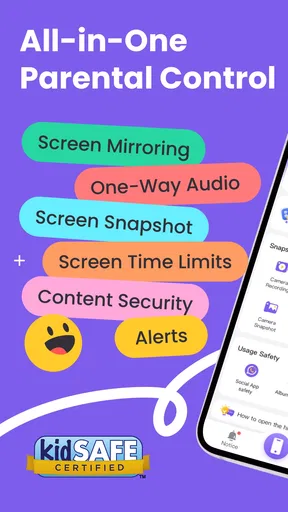
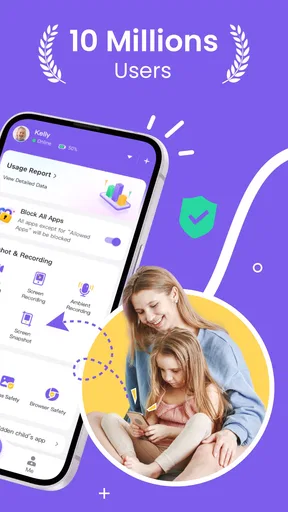
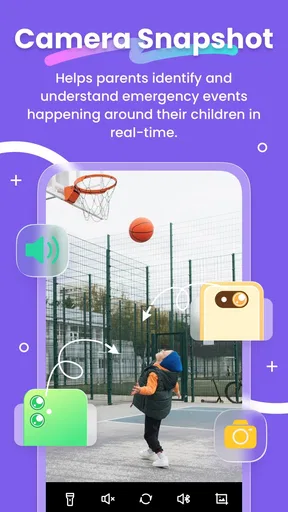
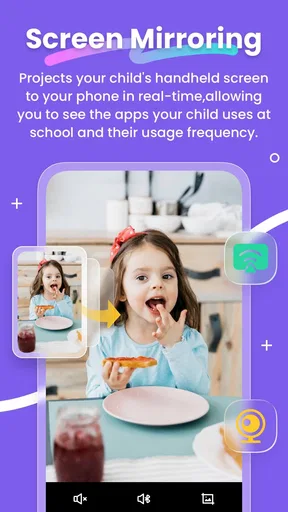
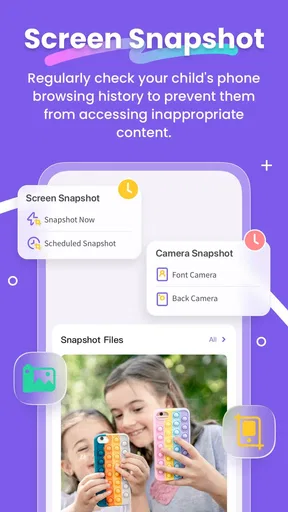
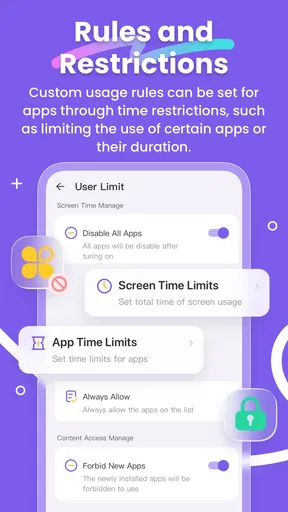
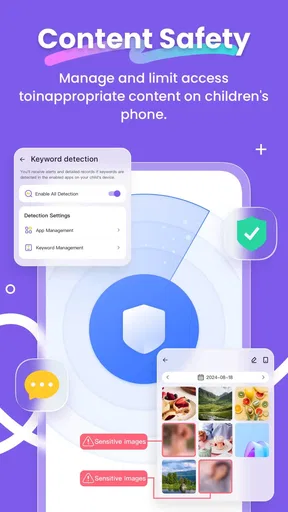
 Analysis by AppCompare
I think a parental-control app works best when it helps a family agree on clear boundaries, not when it turns every quiet moment into a check-in. That is the balance I kept in mind while considering FlashGet Kids: a parenting app from HONGKONG FLASHGET NETWORK TECHNOLOGY that brings several kinds of supervision together. Its focus is broader than simply setting a timer: the tools include location checks, remote camera access, screen mirroring and app blocking. That combination may suit parents who want one place to manage several concerns, though it also calls for thoughtful conversations about privacy and trust.
Readability and finding the right controls
The app’s appeal is its all-in-one approach. Rather than switching between a location tool, a screen-time setting and a separate app blocker, a parent can look to one service for those tasks. In my experience, that can make routines easier to maintain, especially when more than one caregiver needs to understand the same household rules. The interface felt approachable in the original review, but simple navigation does not automatically make every decision simple: parents still need to choose what to monitor and explain those choices to their child.
For a useful first setup, I would begin with just the rules that solve a real problem at home. A school-night device pause or a limit around a distracting app is easier to explain than a long list of restrictions switched on all at once. Once the family has tried those boundaries, it is easier to see what needs adjusting. This staged approach also helps a parent learn where the relevant controls are before needing them in a hurry.
FlashGet Kids is free to install, has an Everyone age rating, and is listed at version 1.3.6.1 for Android 7.0 and later. It has a 4.7 average from around 91,000 ratings and over 10 million installs, so it is a familiar option for many households. Those figures can indicate broad interest, but they cannot tell me whether its approach will fit a particular child or family. Optional in-app purchases range from $8.99 to $99.96 per item, so I would check the available plan and what it covers before relying on a paid feature as part of a routine.
Different abilities and family situations
Parents have different needs, and children do too. A caregiver who finds it difficult to coordinate several apps may value having location and device-management tools under one roof. A family with a child who benefits from predictable routines might use scheduled device-free periods as a clear, repeatable cue rather than relying on repeated verbal reminders. The practical benefit is not that an app understands a child’s needs for you; it is that consistent settings can make an agreed routine easier to follow.
Motor and sensory needs also affect how a household uses technology, but I would not treat any parental-control app as a substitute for a child’s own accessibility settings or support plan. If a child depends on a device for communication, schoolwork or a calming activity, a broad block or device pause could interrupt something important. I would identify essential apps first, test each restriction while the child is present, and avoid applying a rule at a time when losing access would cause a problem. A control that is technically easy to set can still be a poor fit if it makes the device harder for that child to use.
Location tools can be useful in specific situations, such as agreeing that a child will check in when travelling between school and an activity. I would treat a location view as one part of that plan, not as a replacement for teaching the child what to do if plans change or a phone is unavailable. Remote camera and screen-mirroring functions deserve even more care: they can feel intrusive if used without clear family rules. I would discuss when and why they may be used, and make sure the child understands the difference between a safety check and constant observation.
Worth Reading Before You Choose

Baby Panda World Brings Quick Play to Modern Phones, but Its Game Library Feels Busy

ESPN’s Live Game View Makes Following Close Games Easier

QuizzLand Review: A Good Fit for Short Trivia Breaks, Not Every Player

Basketball Stars: Multiplayer Is Fast, but Can It Recover When Matches Go Wrong?

WEBTOON Turns Phone Updates Into a Better Reading Routine

Link to Windows Runs on Shared Habits, Not Social Feeds
Where it fits, and where it may not
Compared with relying only on built-in device controls, this app’s distinctive draw is the mix of supervision tools, particularly location and remote viewing alongside app management. Built-in controls may be a better choice for a parent who wants a narrower, simpler setup or prefers to keep supervision limited to basic time and content rules. A dedicated location-sharing option may also be enough for a family whose main concern is knowing when a child arrives somewhere. The broader toolkit is most useful when those needs genuinely overlap; otherwise, more controls can mean more settings to maintain and more conversations about privacy.
A realistic routine might look like this: a parent sets a device-free period for homework, blocks an app that repeatedly disrupts that time, then checks location when a child is travelling to an agreed activity. If a concern arises, the parent can decide whether a more direct check is appropriate rather than using every monitoring option by default. The useful insight here is to tie each tool to a specific purpose and a clear time or circumstance. That keeps the app from becoming a vague invitation to watch everything.
I would also plan for exceptions before they happen. A changed pickup, a school project that needs a normally restricted app, or a child using the phone for an accessibility need can all make a rigid schedule frustrating. A family should know who can adjust the settings and how to explain a temporary change. If several adults share responsibility, agreeing on the same rules first avoids one caregiver blocking something another has allowed. These small decisions often matter more to daily usability than adding another restriction.
Read the trade-offs before depending on it
The app is aimed at parents who want a central place for several kinds of oversight and are willing to manage the boundaries that come with that choice. I would hesitate to recommend it to a family seeking a hands-off, low-monitoring approach, or to one that already gets everything it needs from simpler device settings. It may also be a poor fit if a child would experience remote viewing or location checks as a breach of trust, unless the family can agree on narrow, transparent use. The point is not to avoid supervision altogether; it is to choose a level that helps without making ordinary independence feel impossible.
Before committing, I would check how the features behave on the devices the family actually uses and review any purchase choices carefully. The app is also available on iOS, but this review focuses on its Android version; families should confirm that the controls they need suit their own device mix. A free starting point makes it easier to explore, while the listed in-app purchase range is a reason to understand costs before making a paid option part of the household plan. I would not assume that every feature is included in every option.
Keeping a Watchful Eye
As soon as I got FlashGet Kids up and running, I could see how its features could be a game-changer for any parent. The app offers a comprehensive suite of tools designed to give you peace of mind while your kids are online. Right off the bat, I was impressed with its intuitive interface. It’s like they’ve read every parent's mind and put everything in one place.
The app allows you to set screen time limits, which is a lifesaver when you don’t want your kids glued to their screens all day. You can schedule device-free times, ensuring they spend enough time outside or doing homework. It's a flexible system that adapts to your family's routine.
Content Filtering and Safety
One of the standout features is the content filtering. With just a few taps, you can block inappropriate websites and apps. It’s like having a digital security guard that makes sure your kids only see what you want them to. The app also provides detailed activity reports, so you know exactly where your kids have been online. This level of transparency is invaluable.
Another nifty feature is the location tracking. If your kids are out and about, you can easily check their location. It’s a reassuring tool, especially when they start gaining more independence. Knowing where they are gives you that extra comfort without being overly intrusive.
Usability and Support
Setting up FlashGet Kids was straightforward, even for someone who’s not super tech-savvy. The developers have done a great job of making the app user-friendly, and I didn’t run into any hiccups during installation. Plus, the customer support is top-notch. They’re quick to respond and genuinely helpful, which is always a plus in my book.
One thing I appreciated was the app's flexibility. It’s adaptable for kids of different ages, so whether you have toddlers or teenagers, you can customize the settings to fit their needs. This versatility makes it a long-term solution for families.
Final Thoughts
In this digital age, having an app like FlashGet Kids is almost essential for modern parenting. It strikes a balance between protecting your kids and allowing them the freedom to explore online. The app is packed with features that are practical and easy to use, making it a reliable partner in your parenting journey.
If you’re looking for a way to manage your children’s online presence with ease and confidence, I’d definitely recommend giving FlashGet Kids: parental control a try. It's like having an extra pair of eyes, ensuring your kids are safe while they enjoy the wonders of the internet.
Pros
- User-friendly interface for easy navigation.
- Customizable screen time limits.
- Comprehensive app blocking features.
- Real-time location tracking for safety.
- Detailed activity reports for parents.
Cons
- Limited features in free version.
- Setup can be time-consuming for beginners.
- Requires stable internet for updates.
- Limited customization for older kids.
- Potential privacy concerns with tracking.
FAQs for FlashGet Kids:parental control
What is FlashGet Kids and how does it work?
FlashGet Kids is a comprehensive parental control app designed to help parents manage and monitor their children's digital activities. It works by allowing parents to set screen time limits, block inappropriate content, and track online usage. The app is user-friendly, making it easy for parents to customize settings according to their child’s needs.
Is FlashGet Kids compatible with both Android and iOS devices?
Yes, FlashGet Kids is compatible with both Android and iOS platforms. This cross-platform capability ensures that parents can manage their child’s device regardless of the operating system, providing flexibility and convenience for families using different types of devices.
Does FlashGet Kids offer real-time monitoring features?
FlashGet Kids provides real-time monitoring features that allow parents to track their child’s online activities as they happen. This includes monitoring app usage, web browsing, and location tracking, ensuring that parents have up-to-date information about their child’s digital environment.
How secure is my child’s data with FlashGet Kids?
FlashGet Kids prioritizes user privacy and data security. The app uses encryption protocols to protect personal information and ensures that data is not shared with third parties. Parents can rest assured that their child’s data is secure and used solely for monitoring purposes.
Are there customizable settings available for different age groups?
Yes, FlashGet Kids offers customizable settings tailored to different age groups. Parents can adjust content filters, screen time limits, and app restrictions based on the age and maturity level of their child, providing a personalized and age-appropriate digital experience.


